Ok, here we go!
First off, I'm really happy with the purchase of this fixture. These are really expensive and not for a reefer on a budget. However, I have justified the cost when factoring in its performance, cosmetics and construction quality. I place a lot of importance on cosmetics when choosing light fixtures... and it just doesn't get much sexier than the Giesemann Aurora! As for performance, there is zero fan noise and it seems to run plenty cool enough.
Software:
Giesemann has not released an Aurora specific software for programming yet... you need to use the Futura BT software. I'm not sure if this limits the programming of the Aurora in any way, but not that I can tell. The only thing that is goofy, when using the Futura software, is the labeling of the T5 channels. The White/Red channel is the inner set of T5 bulbs and the White/Green channel is the outer set of T5 bulbs. The software can be downloaded here:
http://www.giesemann.de/641,2,,.html
Programming:
All in all, programming is actually really basic/easy in my opinion. There are a couple of programming features that I really like, that I haven't seen in another fixture. NOTE: I only have previous experience with Aqua Illumination fixtures. There's also a couple of features that I wish it had... I'll touch on those later. The first feature I really like is what Giesemann calls the "Colour Mixer"... and I'll come back to the 2nd cool feature later.
- Colour Mixer: If you're like me, you are constantly tinkering with spectrum colors and percentages on basically any of todays LED fixtures. And since the Aurora is an LED/T5 hybrid, dimmable T5 at that, it allows for even more tinkering. The Colour Mixer tab is great for this. It allows for playing around with colors and percentages, in real time, without actually changing your current lighting schedule. It simply has a slider bar, which represents intensity %, for all 5 channels. No matter what you set it at, once you "close" out of it, the fixture will automatically go back to your lighting schedule. NOTE: you want to make sure to click on any other tab when you are done with the Colour Mixer, to close out of the Mixer. Otherwise the fixture will stay in Mixer mode, even if you click on the Disconnect tab.
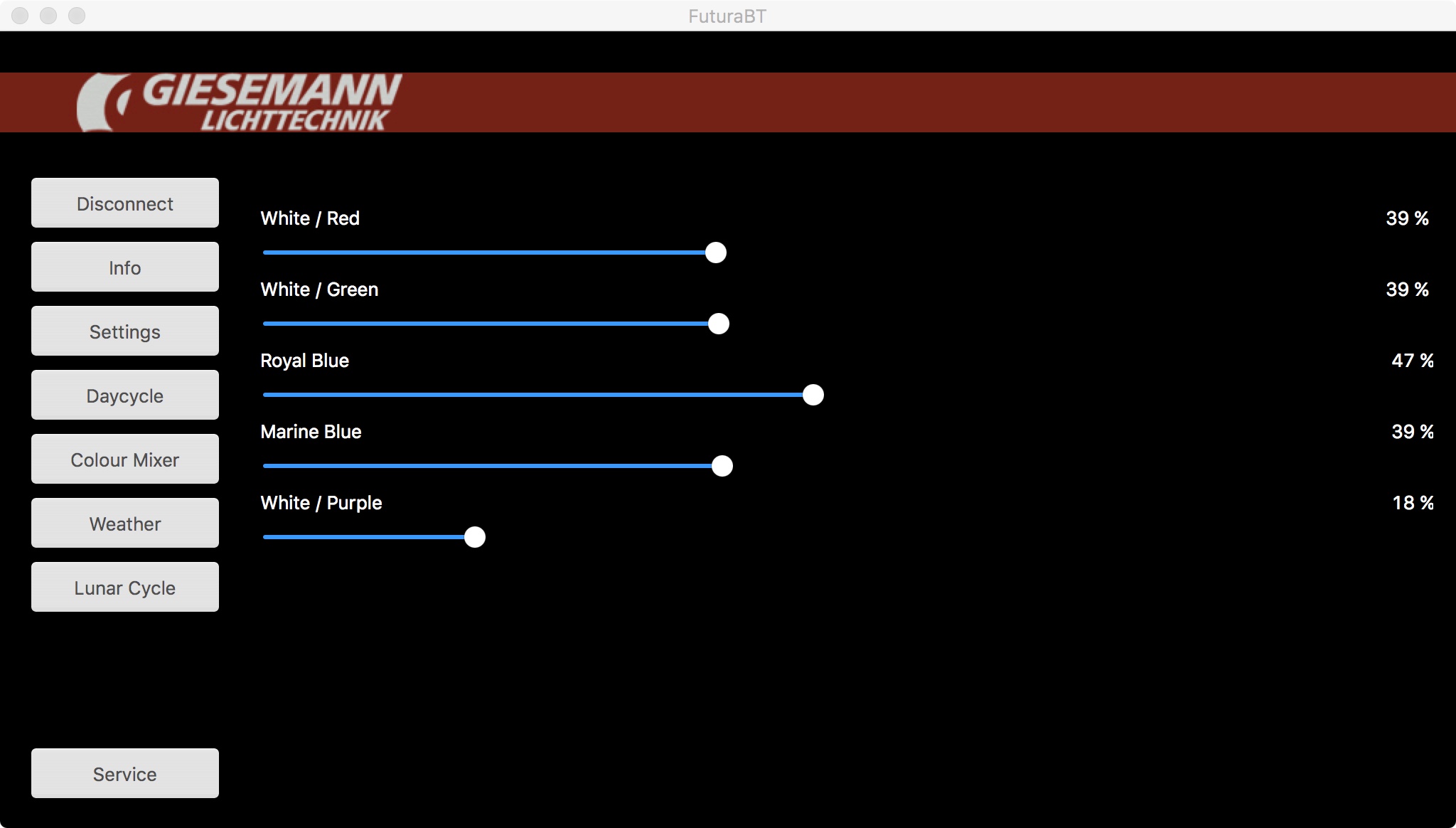 Giesemann Color Mixer
 by
Toby Broadfield, on Flickr
- Day Cycle: Next is the most important part of the programming, the "Day Cycle". This is simply your lighting schedule. You control one channel at a time, which is selectable top/left of the software. Simply double clicking adds a point and you can just drag it wherever you want. If you want to remove that point, you simply double click it again. Easy enough! Once you have adjusted all of your channels to your liking, simply click on the "Save" tab to save the file to your computer, then make sure to click the "Transport" tab to send that lighting schedule to the fixture. Done! When saving the files, I like to name them with my own personal version #, the overall percentage of lighting schedule, what T5 bulbs I'm using and how many hours the schedule runs for i.e. Broadfield Aurora V18 65% Coral Plus x 4 - 8 Hour
- In this example below, I'm running 40% on all channels, except for whites... which are zero. I have an 8-hour total time with a 2 hour ramp up at each end. My white LEDs are at zero since I'm running all Coral Plus bulbs. I then use the blue LEDs to get the spectrum I want. I have experimented with all Actinic bulbs and then used the white LEDs to get my spectrum... the results were almost identical. So I went with the Coral Plus since they are the majority of my spectrum and the T5 bulbs have a really even distribution of light.
 Giesemann 40%
 by
Toby Broadfield, on Flickr
- Move: I spoke earlier about a second cool feature... and that's the "Move" tab within the Day Cycle. Once you have a profile set for a channel, you can simply click on the Move tab to "slide" the entire channel up or down through the day. So lets say you simply want to move your light schedule up an hour. Instead of having to move every single point, for every single channel, you can just move the whole channel up and down the timeline. There's a slider bar that you use to choose the amount of time, up to 60 minute increments, that you want to move the selected channel. So in the example below, I have moved each channel 60 minutes from each other... for display purposes only. I don't use the move feature often, but it's really handy if I'm going to be home at a different time than usual and I can quickly shift the entire lighting schedule to match my available tank viewing schedule.
 Giesemann Move
 by
Toby Broadfield, on Flickr
- Lunar: Lunar mode works great and can follow your actual local lunar schedule. Move the slider labeled "Moon Intensity", to adjust the maximum brightness of the moon. This value determines the maximum intensity of the full moon at day 14. All other values of the ascending and descending lunar phase intensity will be calculated automatically across the 28 day cycle. Move the slider labeled "Lunar Cycle" to determine the current moon phase position relative to your own real time lunar cycle. I.e. if your local lunar phase is at its peak in 2 days time, set the slider to day 12. You can then select the time frame in which the lunar mode is active. Since my Day Cycle ends at midnight, I have my Lunar Cycle run from just before midnight to 4:00am.
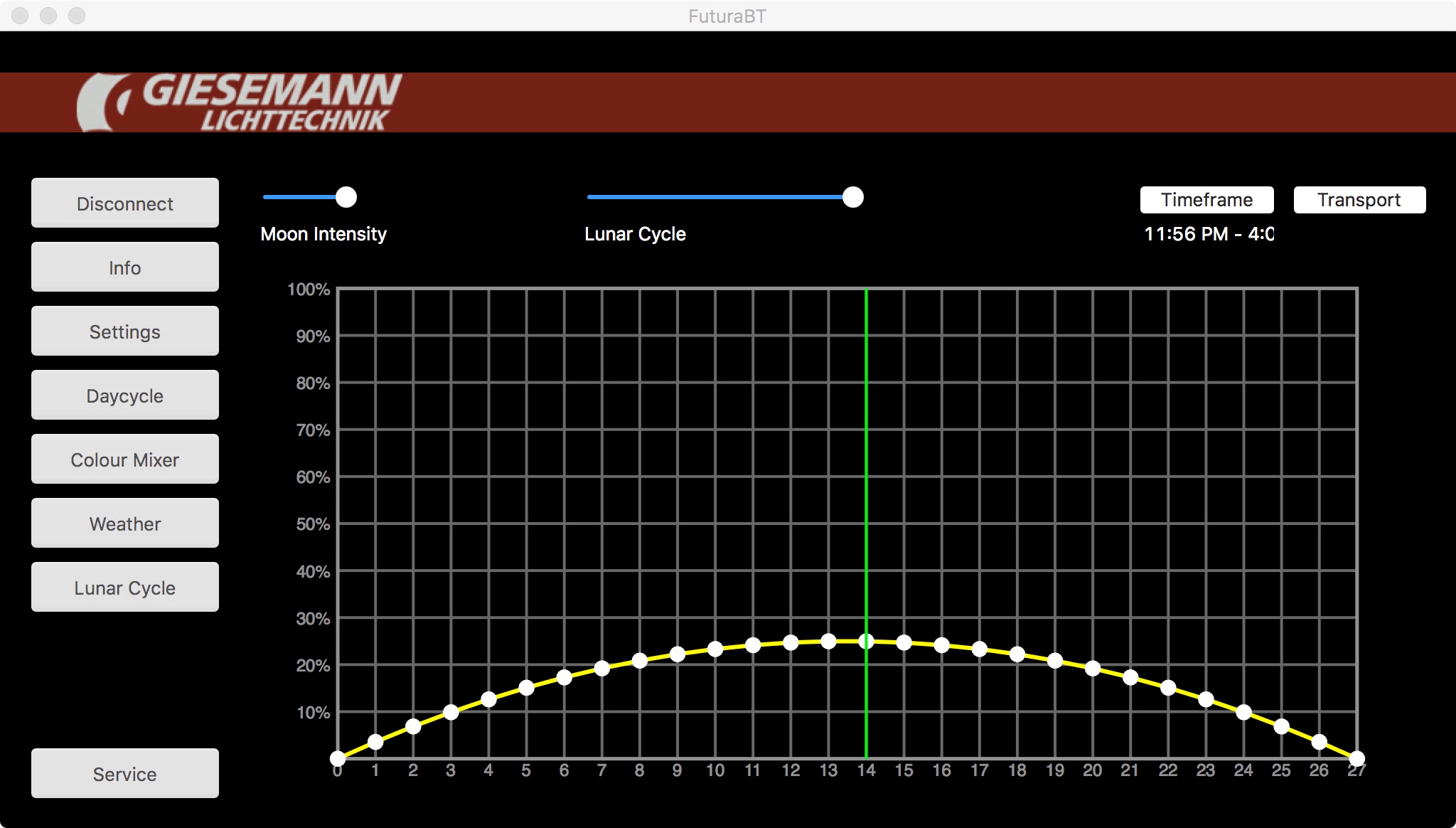 Giesemann Lunar
 by
Toby Broadfield, on Flickr
- Weather: The Weather tab is pretty self explanatory. The cloud cover feature is handy if you want to use it as a tool to run some acclimation. Which brings me to one of my complaints... no acclimation mode. Which then brings me to my second complaint... no move mode for channel intensity. I would of loved to be able to move my channel profiles up and down in intensity.... just as you can with time of day. If they would implement this, I wouldn't care about the lack of acclimation mode as much... because it would be super easy to just create various lower intensity profiles on a whim. However, if you simply want to move a channel up 5% intensity, you need to move every single point to do so... which is not going to be fun if you have like 20 points. Then having to do that for all of the channels... no fun. So back to weather mode, you have plenty of adjustments to get the effect you want... the percentage you want the fixture to dim during cloud cover, the # of times cloud cover will occur in a day and the duration of the cloud cover. The lightning mode is pretty worthless.... but who cares lol.
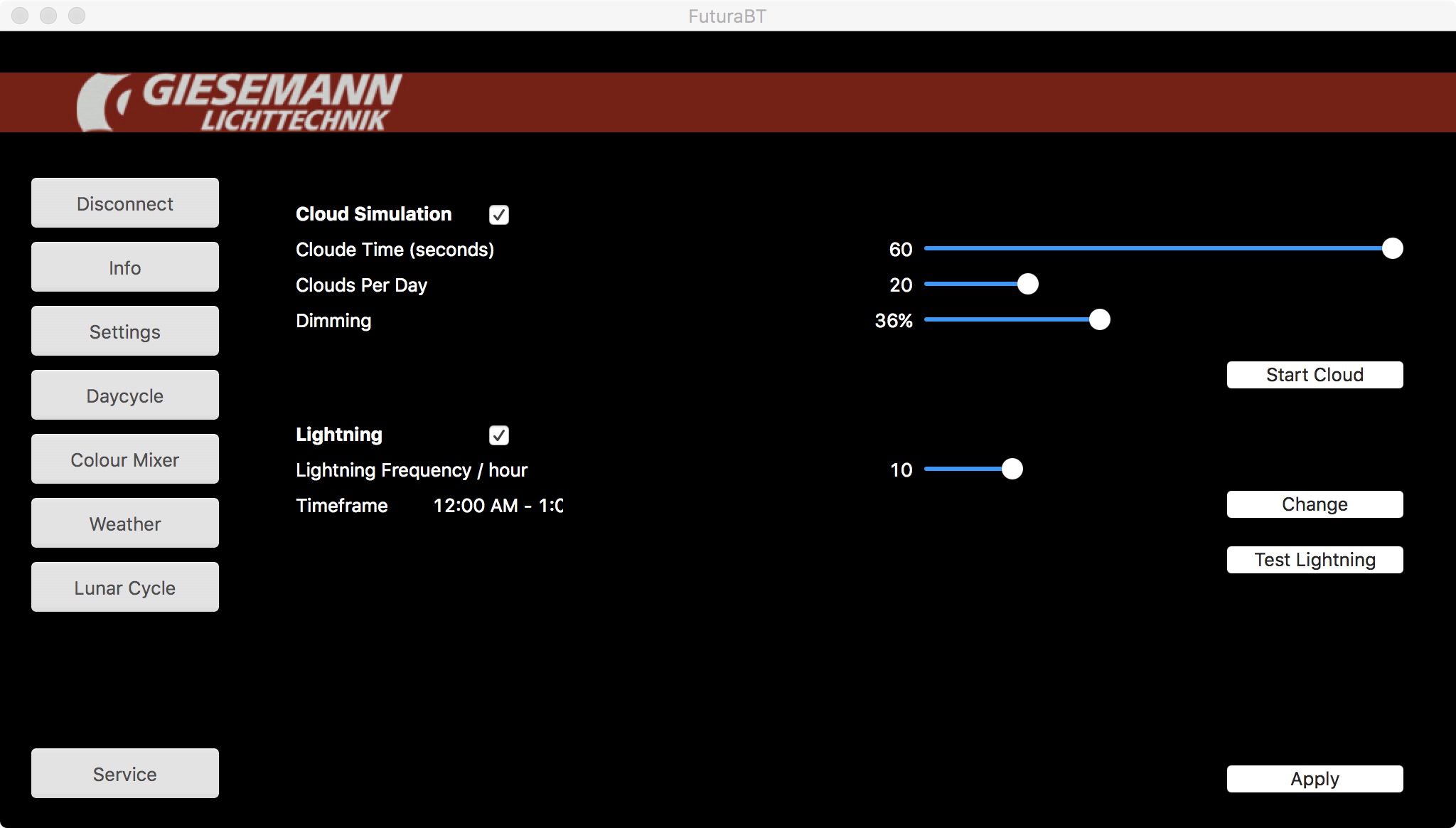 Giesemann Weather
 by
Toby Broadfield, on Flickr
Well, I hope this helps someone with an Aurora. Please use this thread if you have any concerns/questions that I didn't touch on. I didn't want to ramble on too much.








 But seriously, please ask questions if you have a specific enquiry or if you are having issues with something.