2.7- Connecting one Atlantik to your home network and assigning static IP addresses (BEST METHOD)
Connecting the light to your home router and setting a static IP address will ensure that your lights are accessible even after months of operation without changes. Keep in mind that the Orphek Atlantik series is designed to operate without continued need for programming and changes. The system will continue to follow its program daily until you make a change via the app. The Atlantik series does not require continual connection with the app or with other lights in order to operate. All lights operate on their own, via their internal circuitry. This eliminates the reliance on a master unit or device to control the lights 24/7. The system is designed to be set and then allowed to work on its own for years without changing. We suggest that any changes be well planned and as infrequent as possible.
When setting an IP address, most routers use 192.168.1.xxx where xxx is the actual location of the device on the network. Some routers use 10.0.0.xxx. You will need to determine the IP format that your router uses. If you are unable to determine this you can try the 192.168.1.xxx setting and if needed you can perform a factory reset to restore the light and begin again.
When choosing your IP address, Orphek suggests using an IP address that’s not likely to cause conflicts. For this reason we suggest using IP addresses higher than 120. For example; 192.168.1.121 or 192.168.1.122
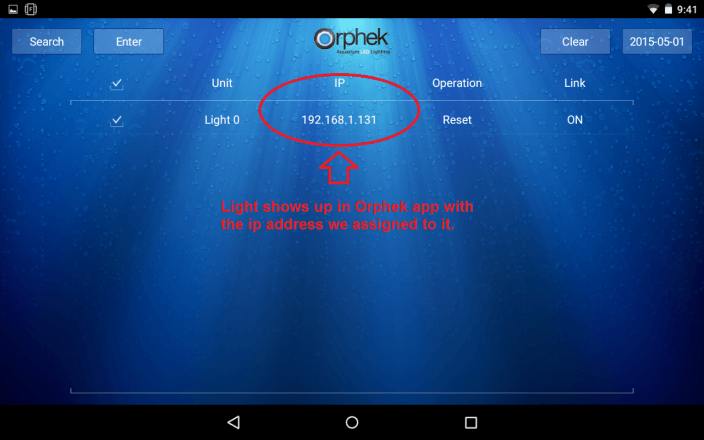
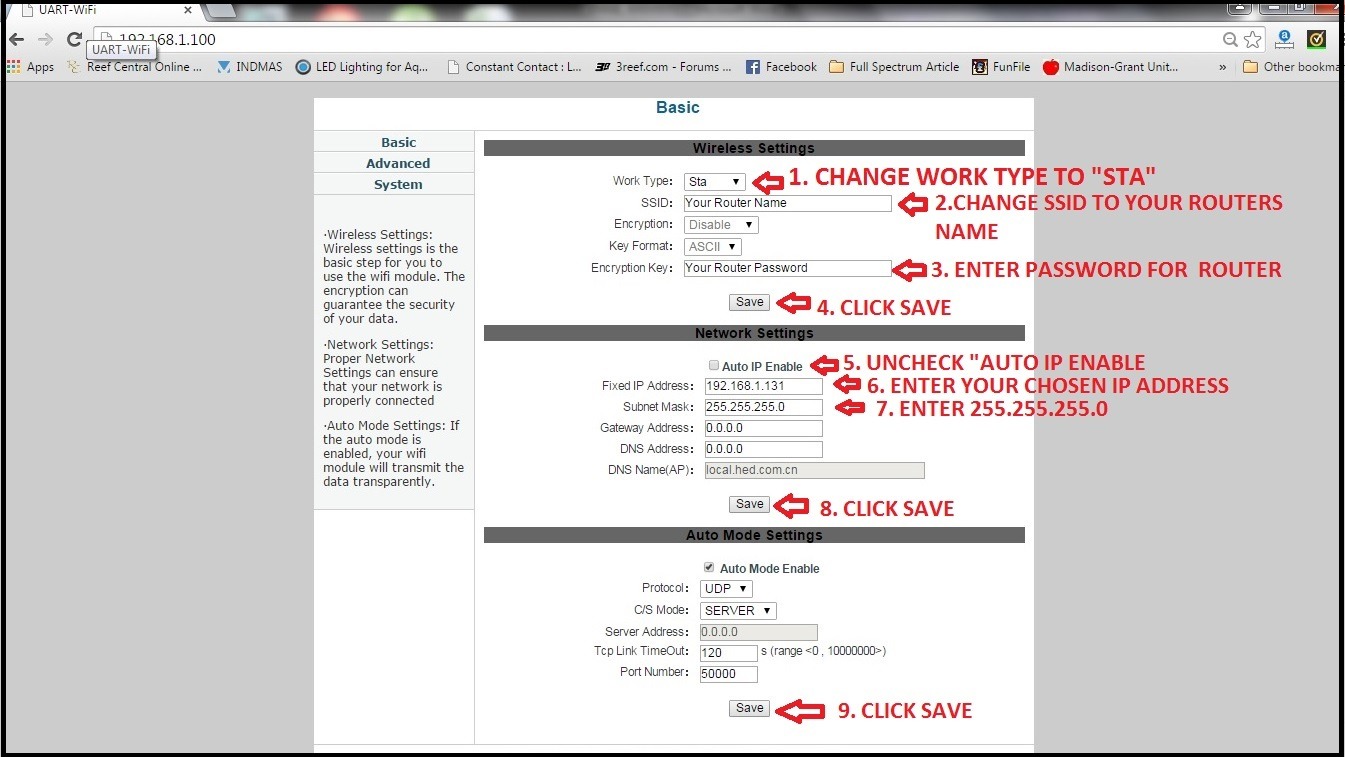
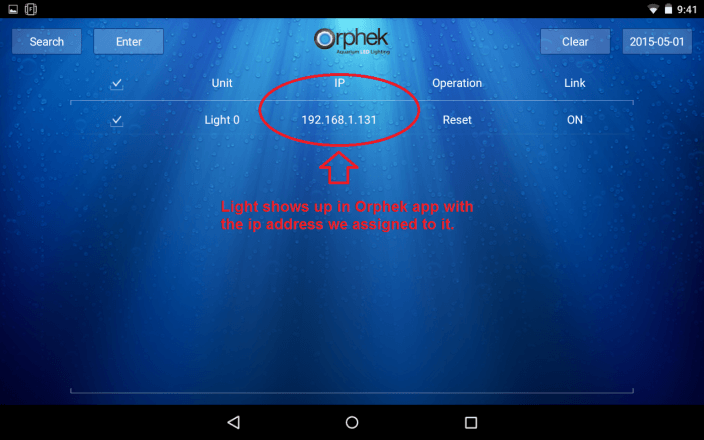
When assigning multiple lights to a network it is beneficial to keep the lights grouped in a series in order to make it easier to keep them straight. As you can see in the examples, only the last three numbers change so you could do 121, 122, 123,124 … In this example we will be setting a light to the IP address of 192.168.1.131
The subnet mask will always be the same for the lights. 255.255.255.0
Your router info and password must be EXACT with capitals, spaces, number and symbols. Please have this info onhand before entering it into the firmware. If a mistake is made and the light restarted, you will need to perform a factory reset in order to restore the firmware and begin again.
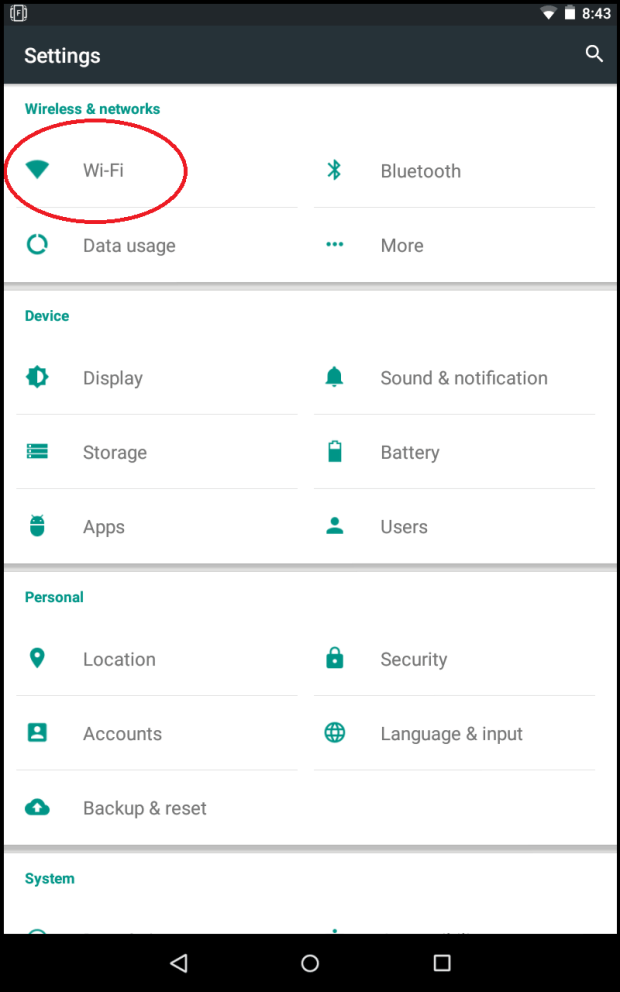
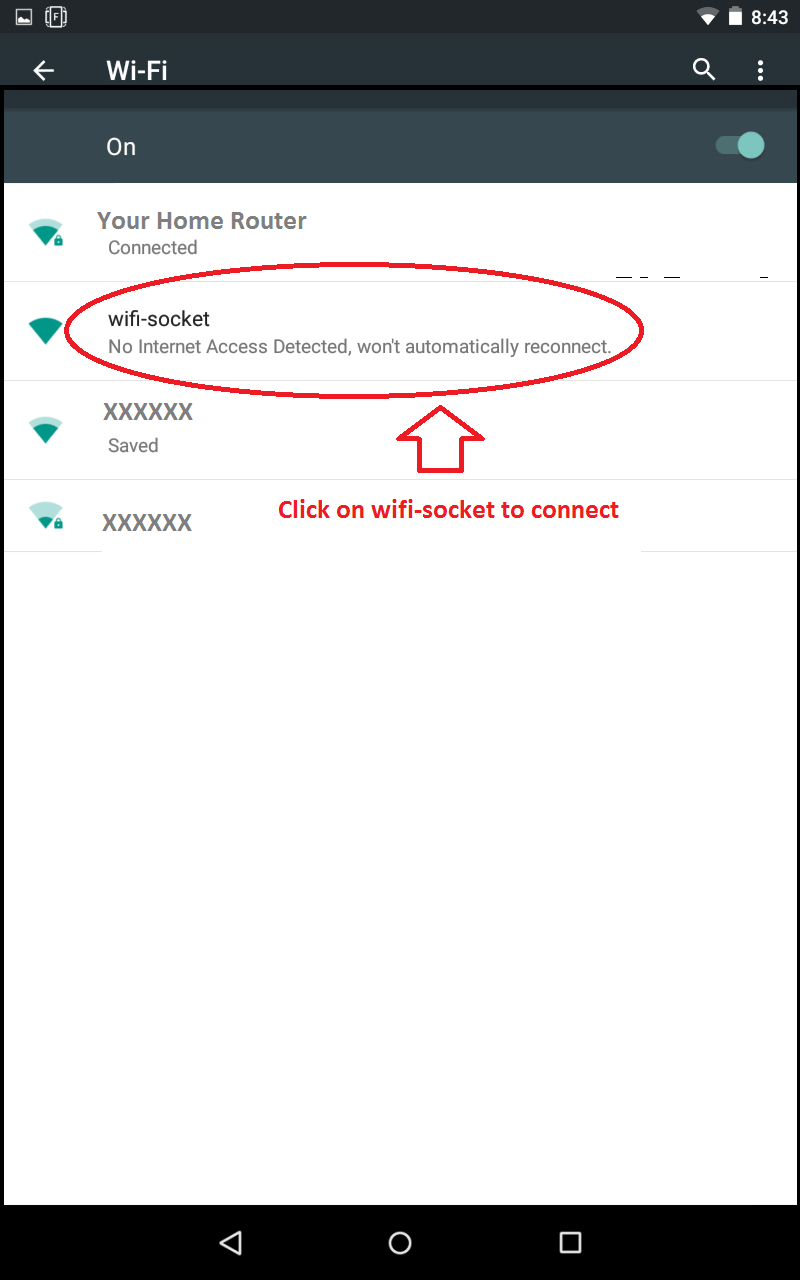
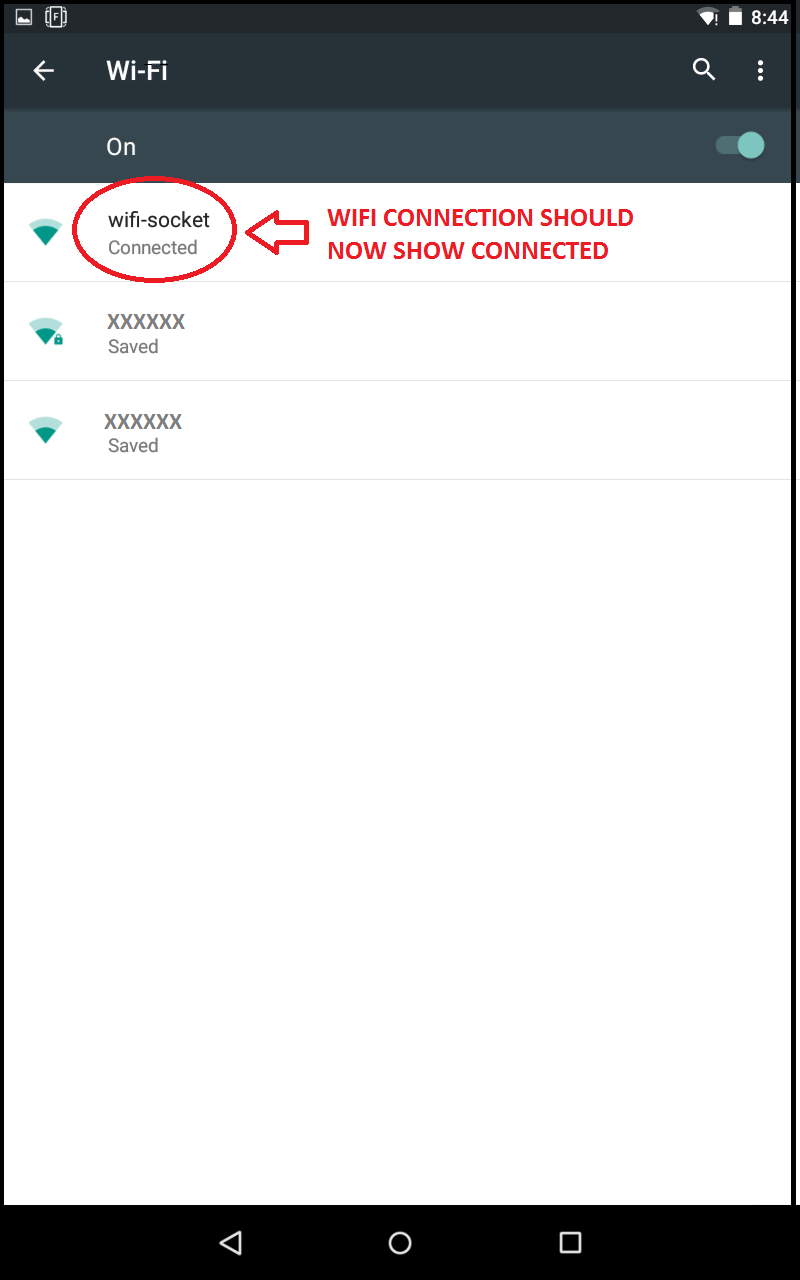
Connect to wifi-socket in your android settings.
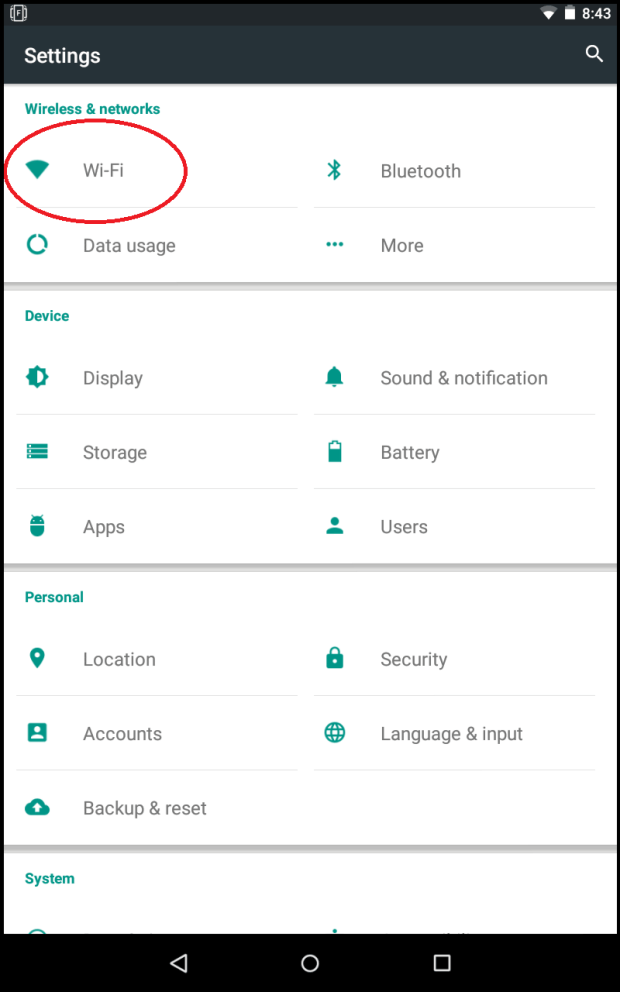
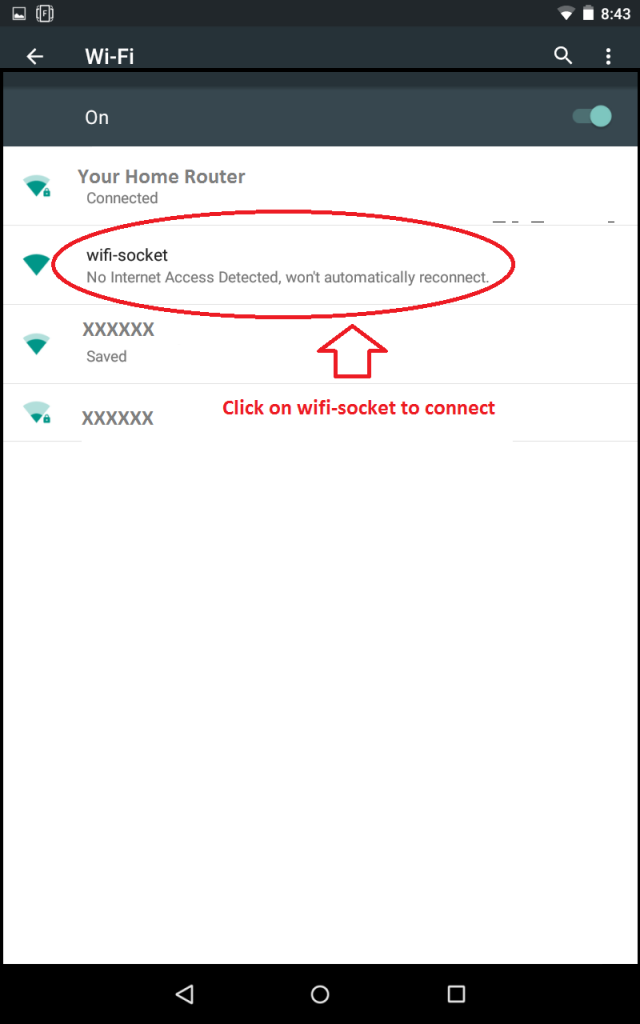
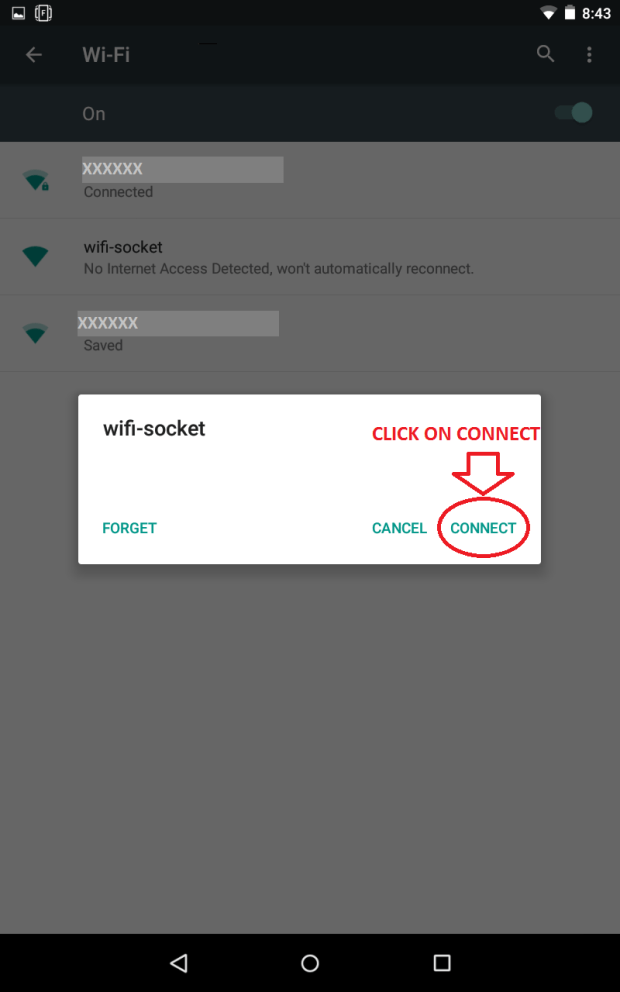

You will now access the firmware in the light using your web browser. This can be Google Chrome or any other web browser that is installed on your Android device. Please keep in mind that you must remain connected to “wifi socket” while performing these steps.
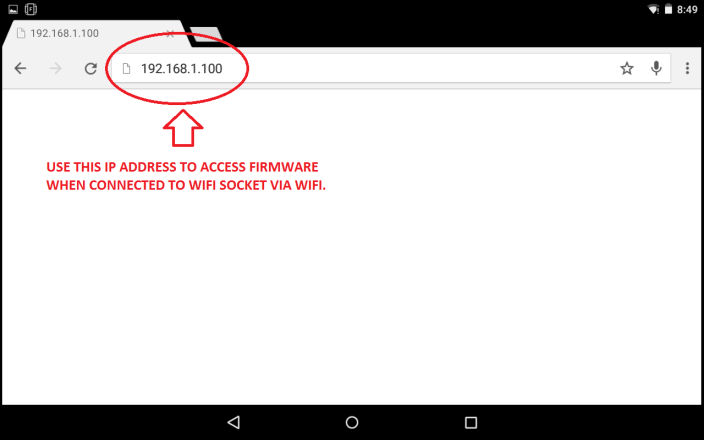
Open your web browser and type “192.168.1.100” in the address bar.
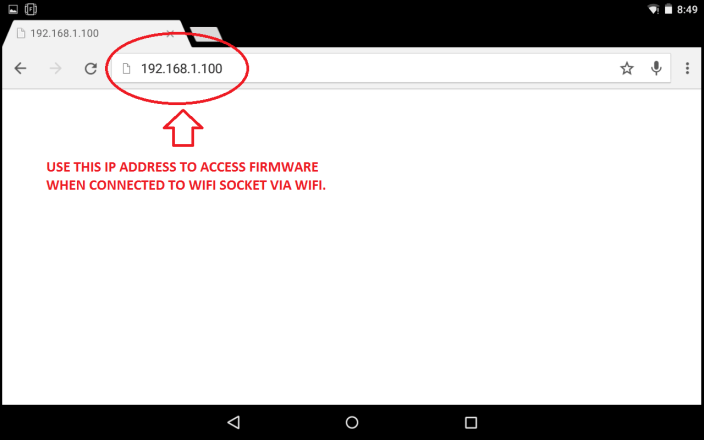
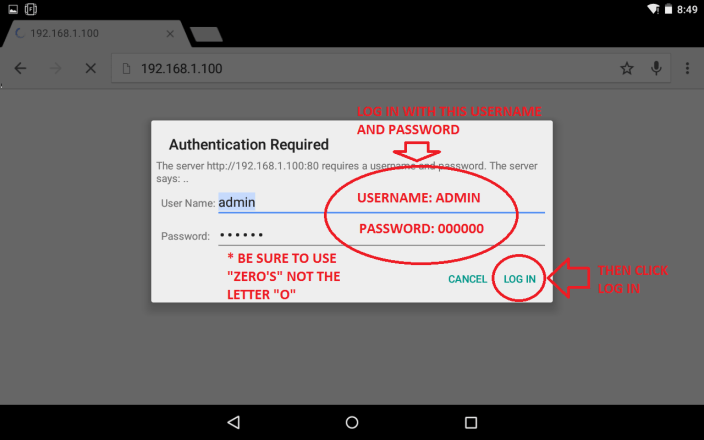
This will bring up the UART firmware screen and prompt you for a username and password.
- Username: Admin
- Password: 000000
Be sure to use “zeros” for the password and not the letter “o”.
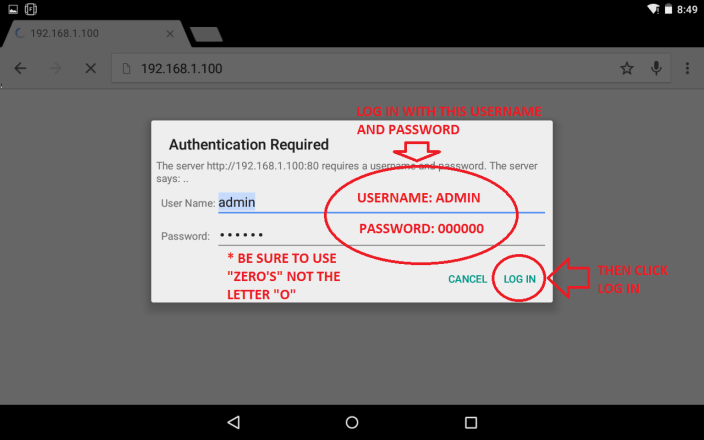
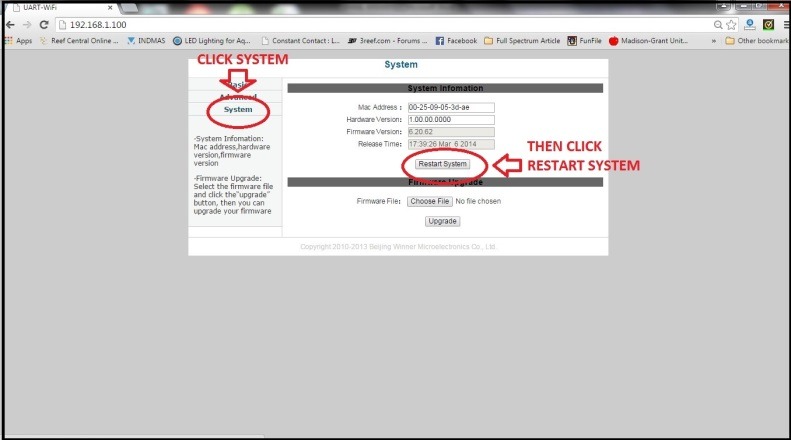
Once you have accessed the firmware screen you will make a few changes and restart the system.
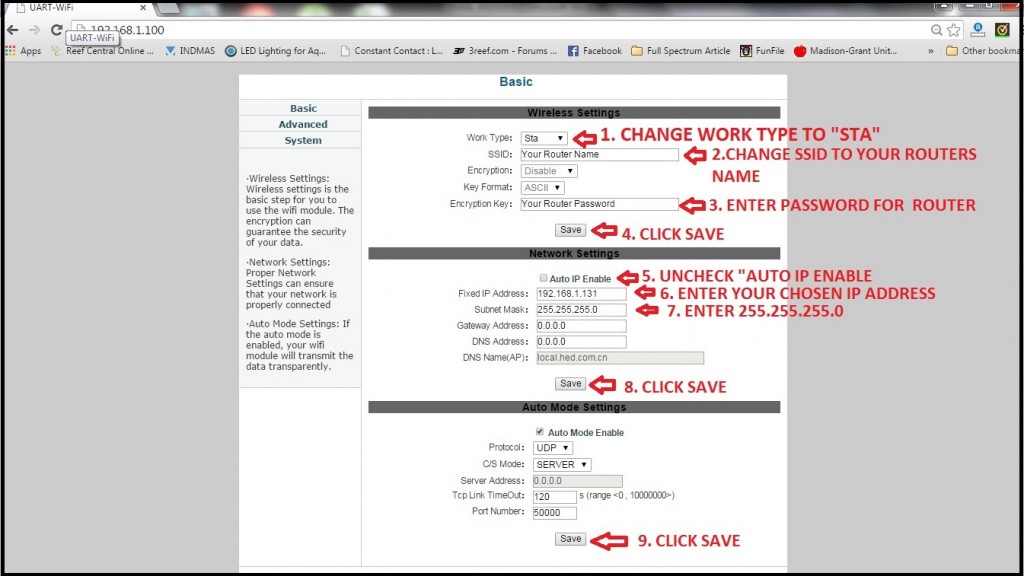
Once you have entered all of the correct info and ensured that it is all correct. You will need to restart the system. PLEASE VERIFY THAT ALL INFO IS CORRECT BEFORE RESTARTING THE SYSTEM.
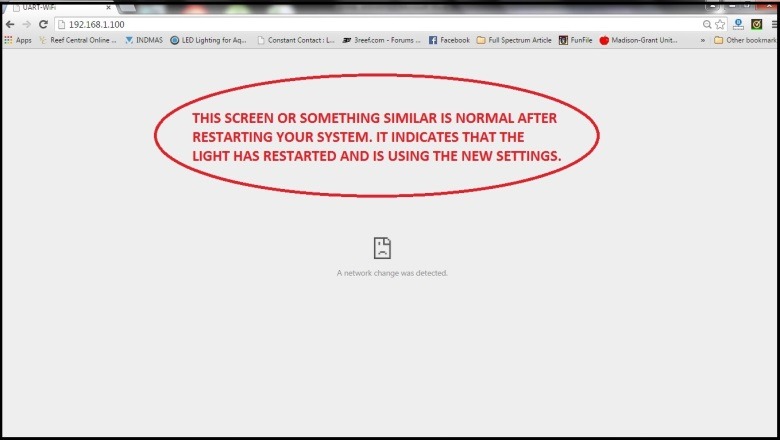
Once the system restarts you will lose connection with the wifi socket and you should get some sort of error screen on your browser notifying you that connection has been lost or unable to connect to 192.168.1.100. At this time the light is now connected to your home network. You can test this connection by skipping directly to section 3.
If you are connecting multiple lights to your network you will need to perform this step for each light, one at a time, selecting a different IP address for each. Please plug in the next light and return to step 2.1.
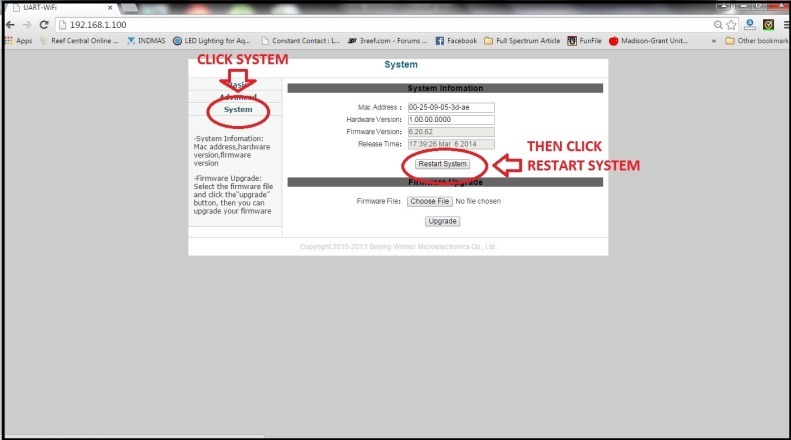
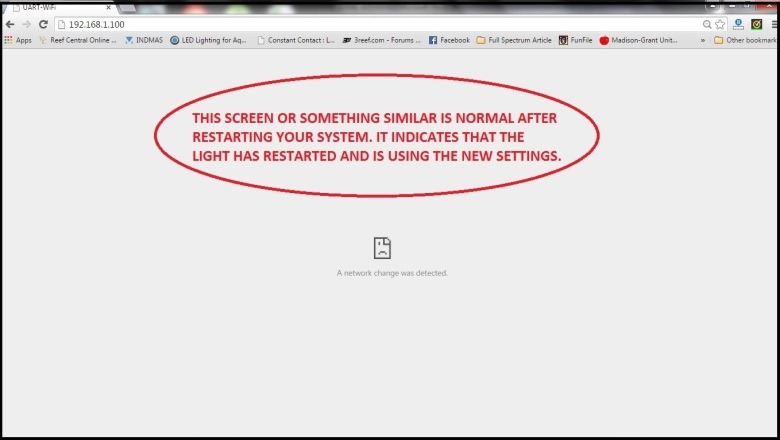
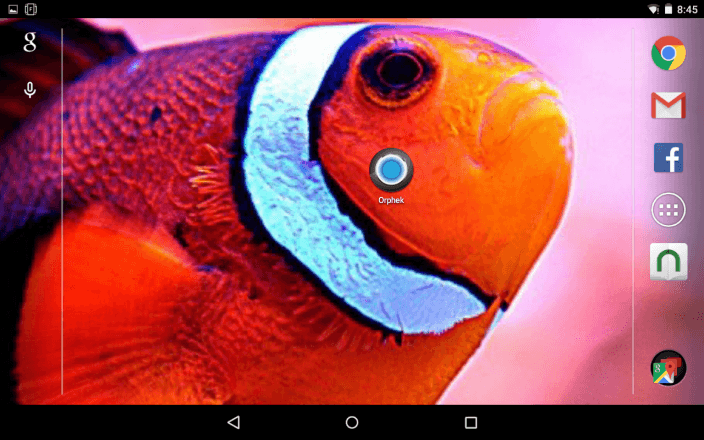
Now you need to open the Orphek app- Return to your home screen and locate the Orphek app and click on it to open.
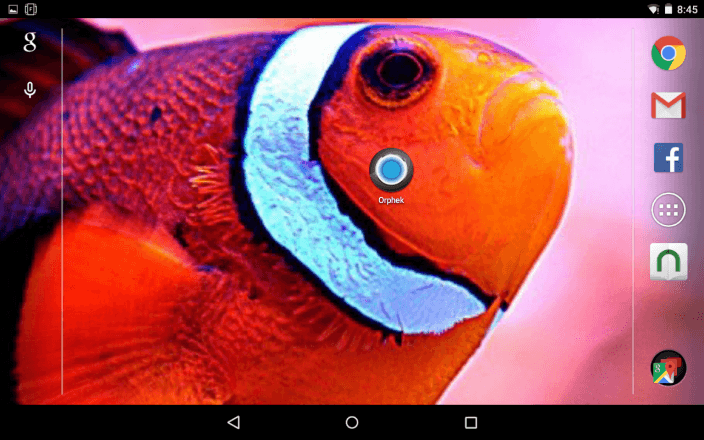
Once you open the Orphek application the animated Orphek splash screen will be displayed.
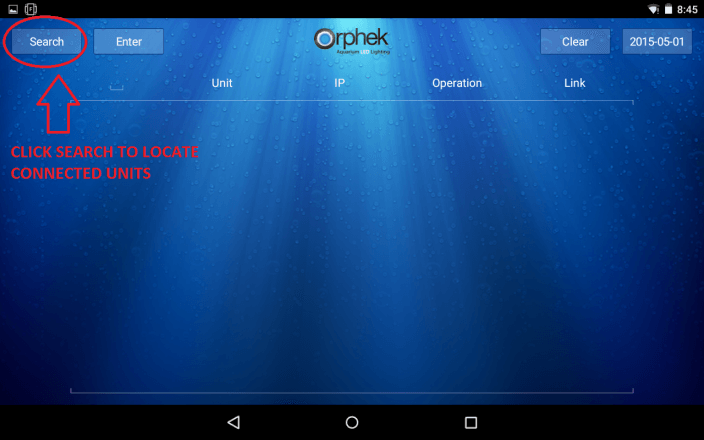
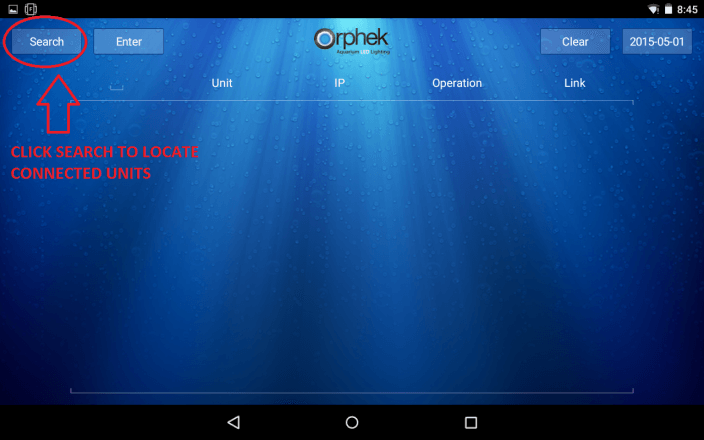
You will need to click on SEARCH to locate your light. If all of your lights do not appear please click the SEARCH button up to 5 times as it goes through all of the potential IP addresses.